
Workflows in Groundbase — a complete guide to "when this happens, do that"
How workflows actually work, end to end — triggers, conditions, steps, waits that stop when someone replies, and the run history — with every event, field and placeholder listed in one place.
A workflow is one sentence: when this happens, do that. A new lead comes in from Google, so tag them and put a call-back on today's list. A quote goes out, so check in three days later — unless they've already replied. A job is marked complete, so send the handover pack now and ask for a review in two weeks.
That's the whole idea. This post is the long version: how the pieces fit, what every option means, and the reference tables I'd want open while building one. The screenshots are from a demo account — a small design-build business — running four real workflows.
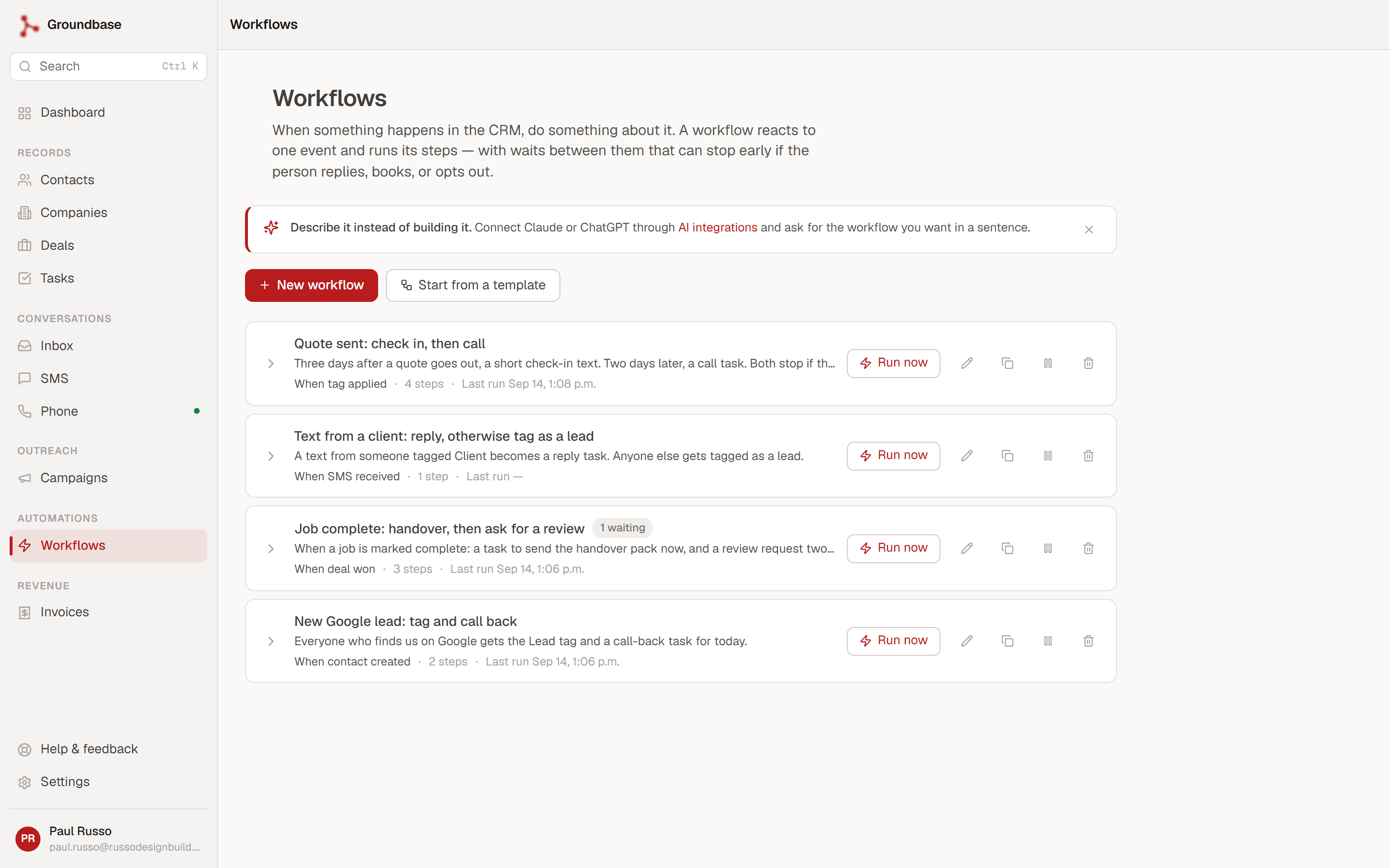
Workflows live in the sidebar under Automations → Workflows. Each row reads as the front of its own sentence — When tag applied, When deal won — with the step count, when it last ran, and a 1 waiting chip when a run is parked on a wait.
The three parts of every workflow
Open one and it's three blocks, top to bottom.
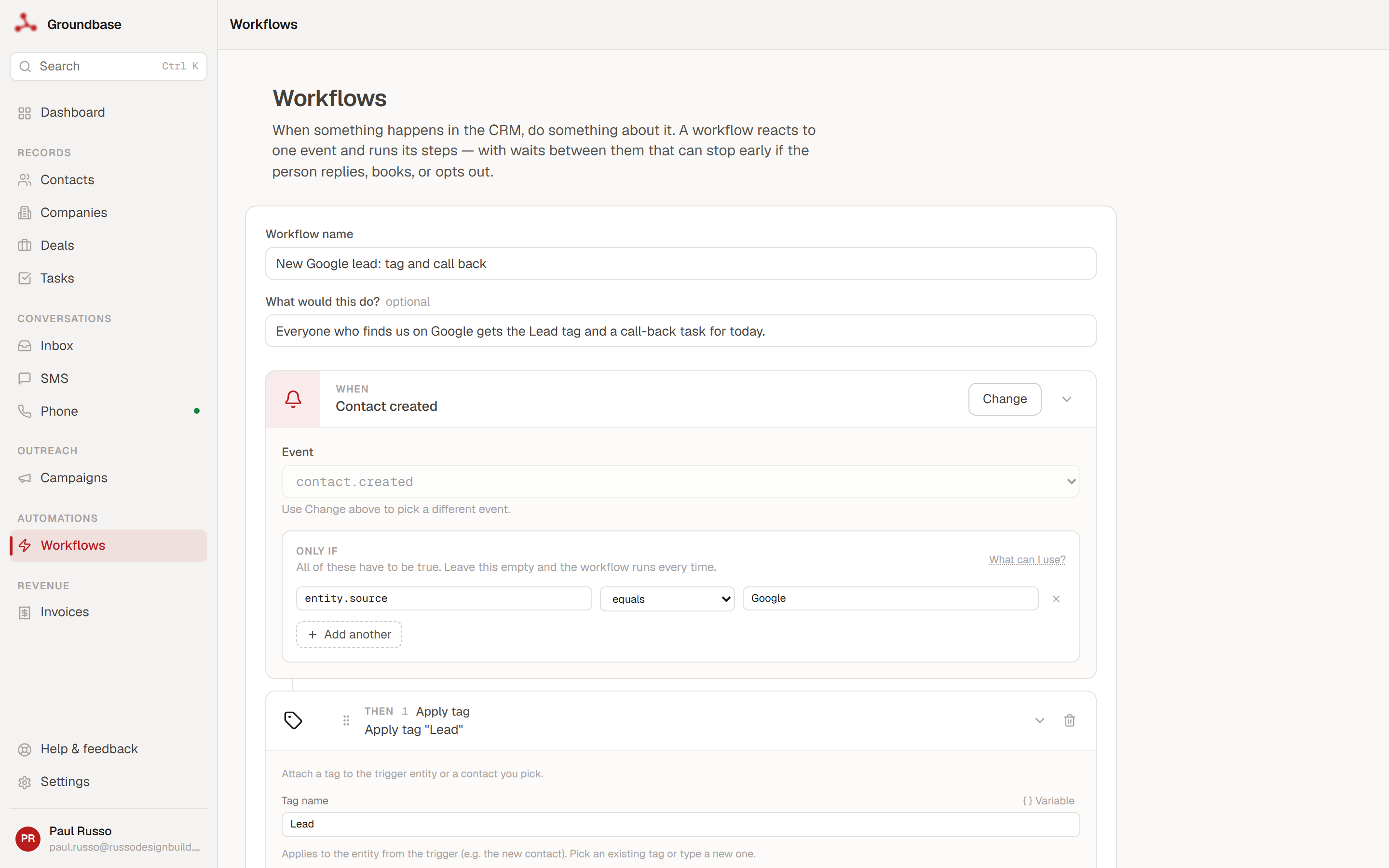
- When — the trigger. What has to happen for this to start.
- Only if — an optional condition. If it's false, the run is skipped and nothing happens.
- Then — the steps, in order. Each one either does something (text, tag, create a task) or controls the flow (wait, branch).
Saving switches it on. From then on, every matching event starts a run.
The one idea that makes everything else click: a run is about a record. When a contact is created, the run is about that contact. When a deal is won, it's about that deal. The engine loads that record at the start, and it's what entity means in conditions and placeholders. Steps that need someone to act on — tag them, note on them, text them — use it automatically.
Triggers
Press Change on the When block and you get four kinds.
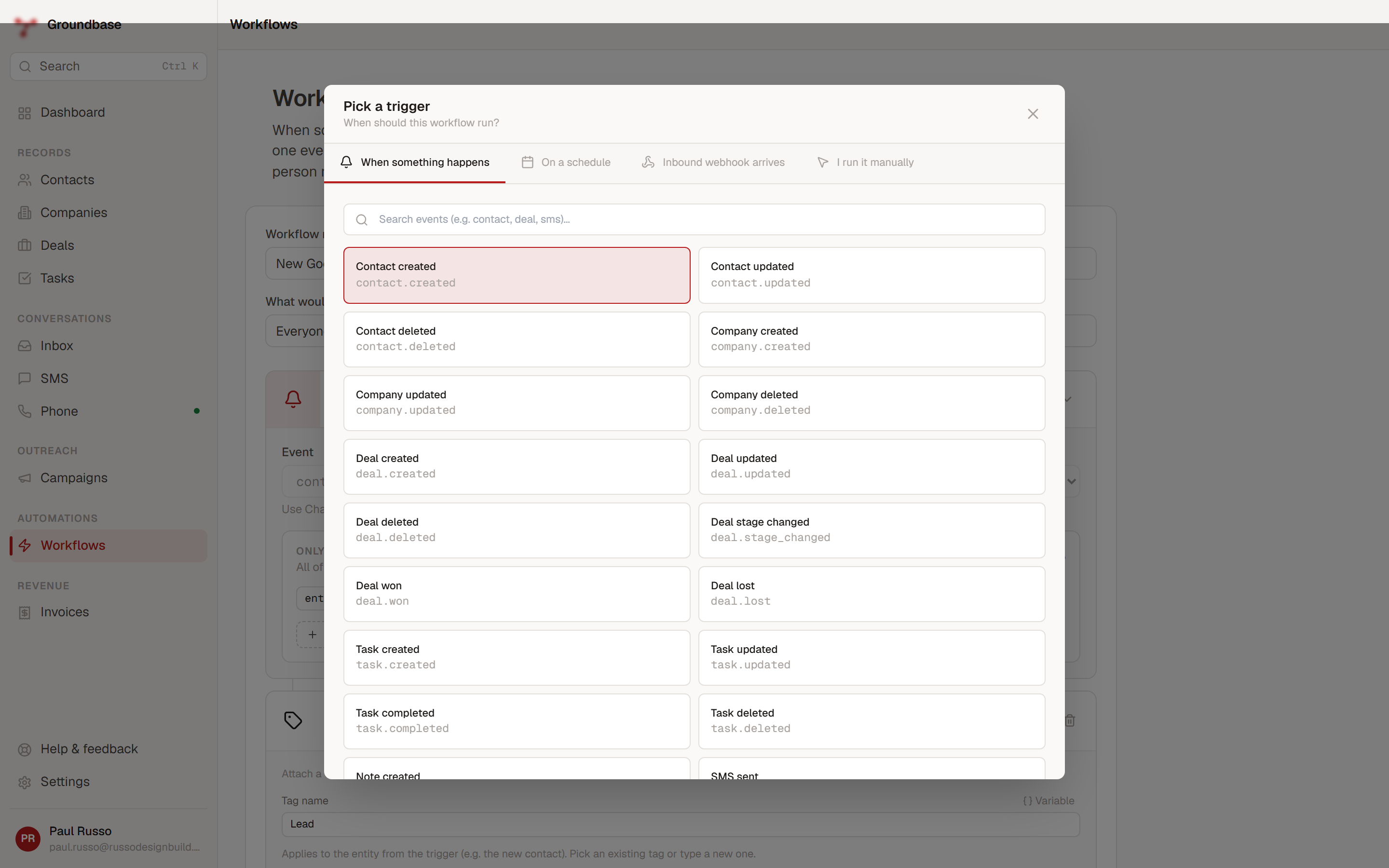
| Trigger | Starts when | What the run is about |
|---|---|---|
| When something happens | An event inside Groundbase — the full list is below | The record the event was about |
| On a schedule | Once at a set time, or every hour, day or week, in your timezone | Nothing — see the note below |
| Inbound webhook arrives | Something outside posts to one of your inbound webhooks (a form, Zapier, your own site) | The contact the webhook created or matched |
| I run it manually | Only the Run now button | The contact you pick |
The schedule editor shows the next few run times as you type, so a schedule that would never fire is obvious before you save.
A scheduled run has no record. Steps that need one — apply a tag, add a note — are skipped with a note in the history rather than failing. If you want a scheduled workflow to text or email someone, put a literal number or address in the step's To field.
Every event you can trigger on
This is the list the picker offers. The last column is what the event carries with it, which you can read as trigger.payload.<key> in a condition or a placeholder.
| Event | Fires when | The run is about | Values on trigger.payload |
|---|---|---|---|
contact.created | A contact is added by any route — the app, a form, the API | the contact | first_name, last_name, email, phone |
contact.updated | A contact is edited | the contact | changed_fields (the column names), source |
contact.deleted | A contact is deleted | nothing | contact_id |
company.created / company.updated / company.deleted | The same, for companies | the company | name, industry, website; changed_fields on update |
deal.created | A deal is opened | the deal | title, value_cents, stage_id, contact_id, company_id |
deal.updated | A deal is edited | the deal | changed_fields |
deal.stage_changed | A deal moves between stages | the deal | from_stage_id, to_stage_id, to_stage_name, is_won, is_lost, title, contact_id |
deal.won / deal.lost | A deal lands in a stage marked Won or Lost | the deal | same as stage changed |
deal.deleted | A deal is deleted | nothing | deal_id |
task.created / task.updated / task.completed / task.deleted | Tasks, events and meetings | the task | title, kind, due_at, contact_id, deal_id |
note.created | A note is added to a contact, company or deal | the note | body, entity_type, entity_id, source |
tag.applied / tag.removed | A tag goes on or comes off a contact, company or deal | the tagged record | tag_name, tag_id, entity_type, entity_id |
sms.sent | You send a text — by hand, from a workflow, from a campaign | the contact | body, to_number, from_number, segments, message_id |
sms.received | A text arrives on one of your numbers | the contact, if the number matched one | body, from_number, to_number, keyword, is_opt_out |
sms.delivered / sms.failed | Twilio reports how a text went | the contact | to_number, twilio_sid; error_message on failure |
email.sent | You send an email from a connected inbox | the contact | to, cc, bcc, subject, from |
call.completed | A call ends | the contact, if the call matched one | direction, status, duration_seconds, from_number, to_number, twilio_call_sid |
voicemail.received | A voicemail lands | the contact, if the caller matched one | from_number, to_number, duration_seconds, recording_url |
invoice.issued / invoice.voided | An invoice is issued or voided | the invoice's contact | number, total, currency, contact_id, company_id |
invoice.paid | An invoice's balance reaches zero | the invoice's contact | total |
payment.recorded | Any payment is recorded against an invoice | nothing | amount, balance, method |
Two that are worth knowing about before you need them. invoice.paid fires only when the balance hits zero — a deposit is payment.recorded, so "when paid, send the thank-you" can't go out early on a part-payment. And deal.won exists, so you don't have to build "stage changed, only if the stage is Won" yourself.
Conditions: "Only if"
A condition is one or more lines, each a field, a comparison, and usually a value. With more than one line you choose whether all of them must be true or any one is enough.
The first workflow in the list only wants people who found the business on Google, so its condition is one line: entity.source equals Google. A contact from a referral still starts a run — it's just skipped, and the history says so.
Press What can I use? and the editor shows its own reference, so you're not guessing:
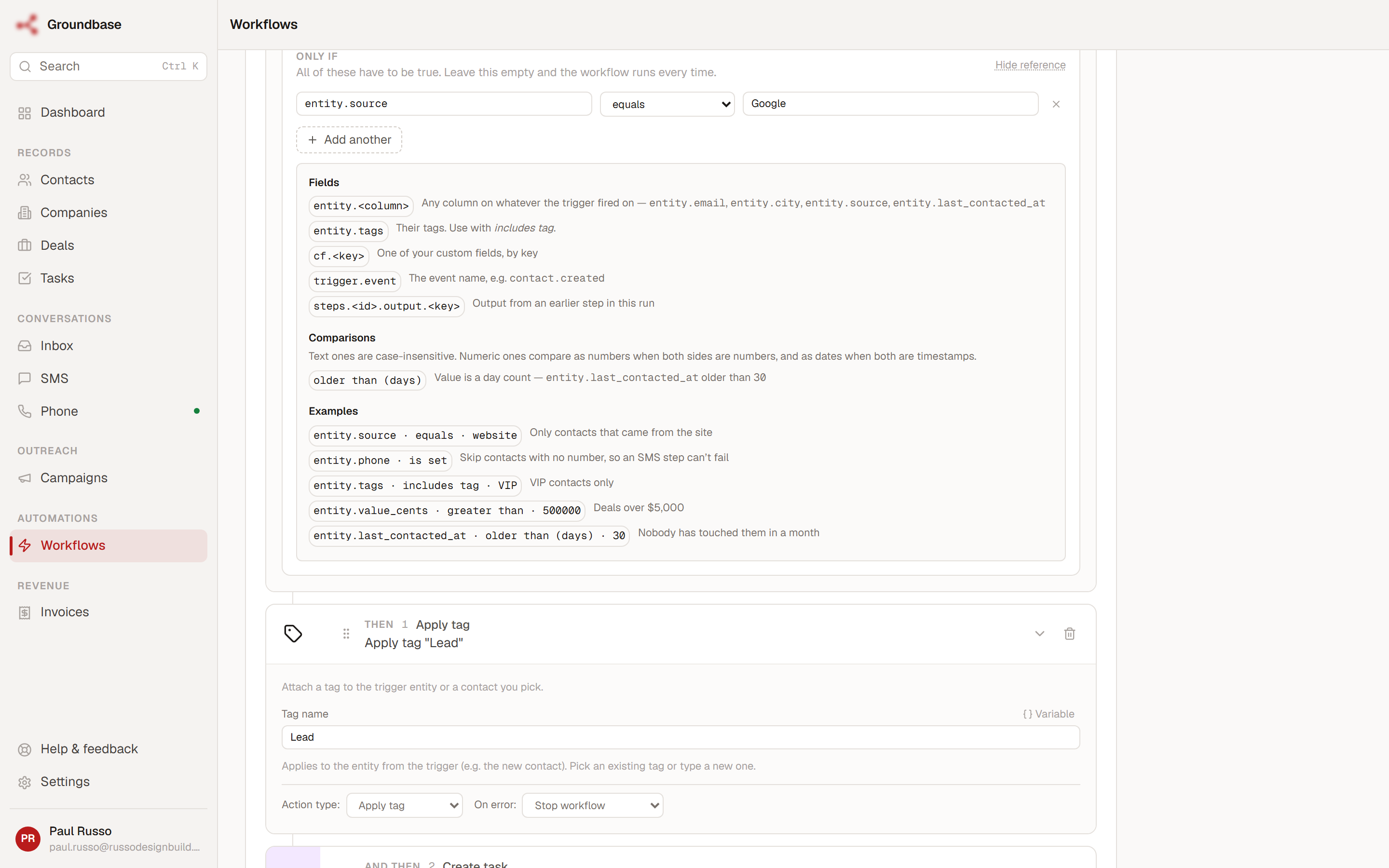
Fields you can compare
| Write | Means |
|---|---|
entity.<column> | A column on the record the run is about — the legend is further down |
entity.tags | The record's tags. Use with includes tag |
cf.<field_key> | One of your custom fields, by its key |
trigger.payload.<key> | A value the event carried, from the event table above |
trigger.event | The event name, like deal.won |
trigger.entity_type / trigger.entity_id | What kind of record the run is about, and its id |
steps.<step id>.output.<key> | Something an earlier step in the same run produced |
a bare column, like source | Short for entity.source |
One trap the editor will stop you walking into: it's trigger.payload.tag_name, not payload.tag_name. The short form would read as empty every single time and the workflow would never run, so the editor refuses to save it.
Comparisons
| Comparison | Reads as | Needs a value |
|---|---|---|
| equals / not equals | exact match, ignoring case | yes |
| contains / not contains | the value appears anywhere in the field | yes |
| starts with / ends with | ignoring case | yes |
| is set | the field has any value | no |
| is empty / is not empty | the field is blank, or isn't | no |
| includes tag | the record carries this tag (use with entity.tags) | a tag name |
| greater than / greater or equal / less than / less or equal | as numbers when both sides are numbers; otherwise as text, which happens to sort dates correctly | yes |
| older than (days) / newer than (days) | the field is a date more, or less, than this many days ago | a number of days |
A few that earn their place:
entity.phoneis set in front of a text step, so a contact with no number is skipped rather than logged as a failure.entity.tagsincludes tagVIP.entity.value_centsgreater than500000— deals over $5,000. Deal values are stored in whole cents.entity.last_contacted_atolder than (days)30— nobody's touched them in a month.
Steps
Every step has its own settings and an On error choice: stop the whole run at this step, or carry on to the next one.
| Step | What it does | Settings | Needs a record |
|---|---|---|---|
| Send SMS | Texts through your Twilio number. Honours STOP opt-outs | Message body; To is optional — blank uses the contact the run is about | yes, unless To is filled in |
| Send email | Emails from your connected inbox | To (an address or {{entity.email}}), Subject, Body | yes, unless To is filled in |
| Apply tag / Remove tag | Adds or removes a tag on the record; a new tag name is created for you | Tag name | yes |
| Create task | Adds a task linked to the record — a deal links the deal, its contact and its company | Title, Description, Due in days (lands at 9 am your time) or a date, Kind (task, event, meeting), Location | no, but it's unlinked without one |
| Create note | Drops a note on a contact, company or deal | Body | yes |
| Update field | Changes one column on the record | Field and Value — first name, last name, email, phone, position, city, source, notes, primary phone, company | yes |
| Set custom field | Writes one of your custom fields | Field key and Value | yes |
| Fire webhook | Calls an outside URL — Slack, Zapier, your own service | URL, Method, Headers, Body. Private addresses are refused | no |
| Wait | Pauses the run, and can end it early — its own section below | Amount and unit, plus the stop conditions | no |
| Branch | If this, run these steps; otherwise, run those | A condition, a then list and an otherwise list | no |
The limits, so you don't find them by accident: up to 50 steps, branches nested up to three deep, and waits of up to 30 days.
Waits that stop when someone replies
This is the part that turns a list of actions into a proper follow-up.
The quote workflow is four steps: wait three days, send a short check-in text, wait two more days, create a task to call them. Written like that, it has an obvious problem — if the customer replies on day one, they still get the "just checking in" text on day three, and you still get a task to chase someone who already said yes.
So each Wait can stop the run instead of continuing:
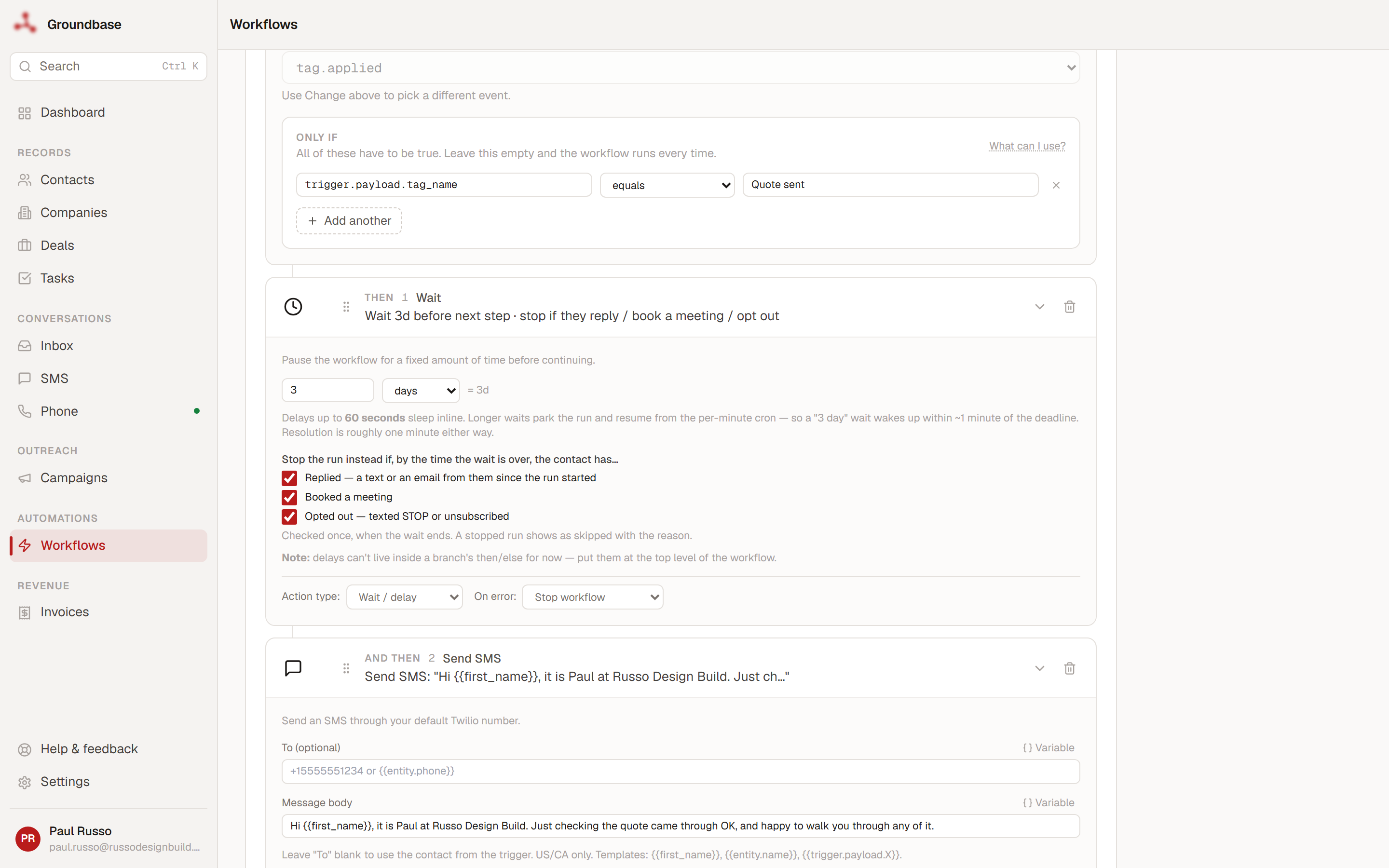
When the wait is over, the run looks at the contact before doing anything else. If, since the run started, they have:
- Replied — sent you a text, or an email. An email only counts if your inbox is connected, since that's how Groundbase sees it arrive.
- Booked a meeting — a meeting or event on their record, whether they booked it through your booking page or you added it.
- Opted out — texted STOP, or unsubscribed from your email.
…then the run stops there. Nothing after the wait happens, and the run history says exactly why:
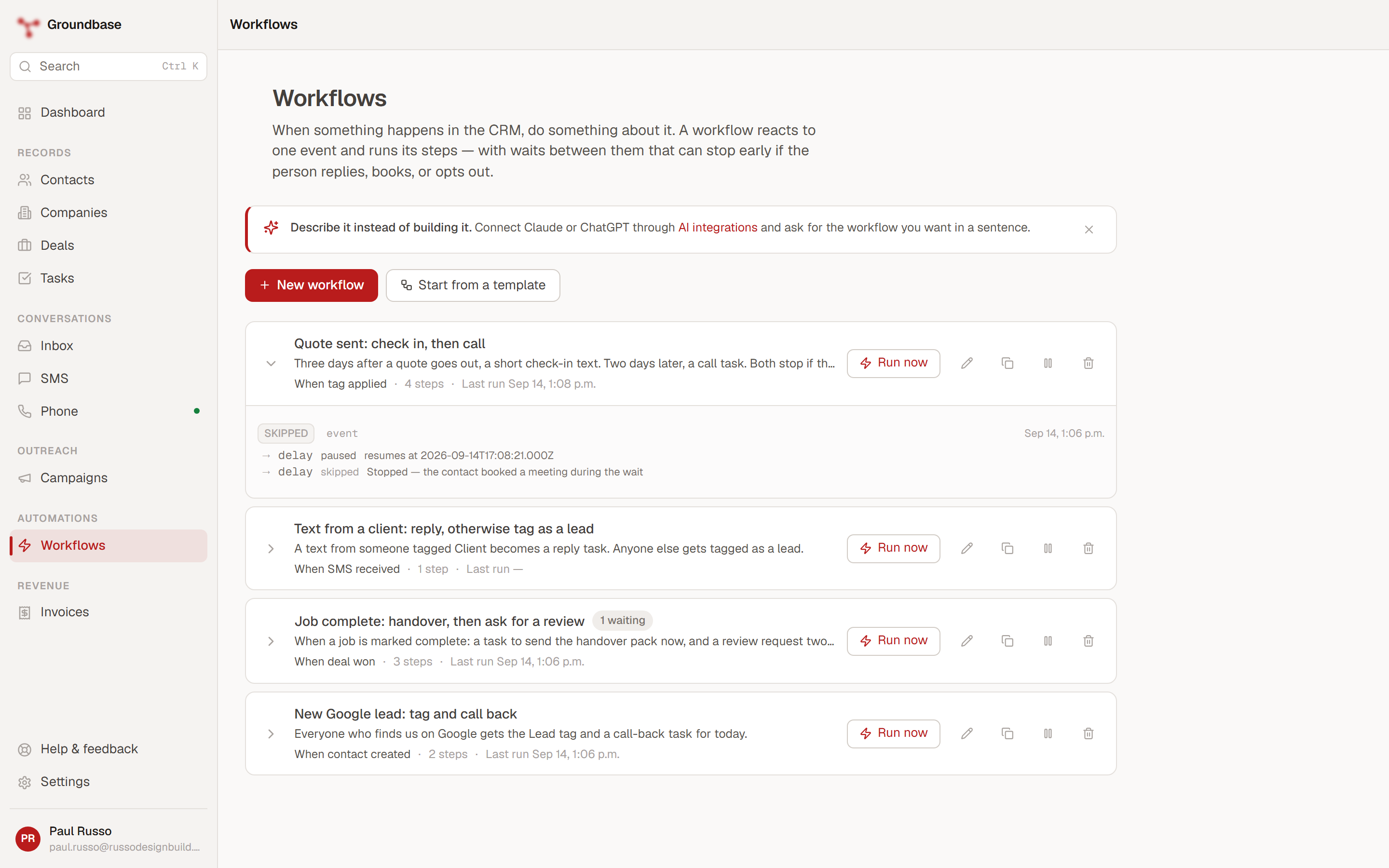
That one is real, from the demo account. The contact was tagged Quote sent, the run parked on its wait, and before it was up she booked a walkthrough. When the wait ended, the run closed as skipped — "Stopped — the contact booked a meeting during the wait" — and no check-in text went out.
A few details that matter:
- The check happens once, when the wait ends — not continuously. A three-day wait wakes within about a minute of the three days.
- It works on runs about a deal too: it checks the deal's contact.
- It needs a wait longer than a minute. Short waits happen inline and never come back to look. Waits inside a branch are capped at a minute for the same reason, so the editor won't let you tick the boxes there.
If you've used "sequences" in another CRM, this is that — built out of the same pieces as everything else rather than a separate feature with its own rules. Groundbase did have a separate Sequences feature for a while. I removed it, because a workflow with waits does the same job, and one way of doing a thing is easier to trust than two.
Branches
A branch is an if/else inside the steps. The fourth workflow triages incoming texts: if the sender is tagged Client, make a task to reply to them; anyone else, tag them as a lead so they show up in the right list.
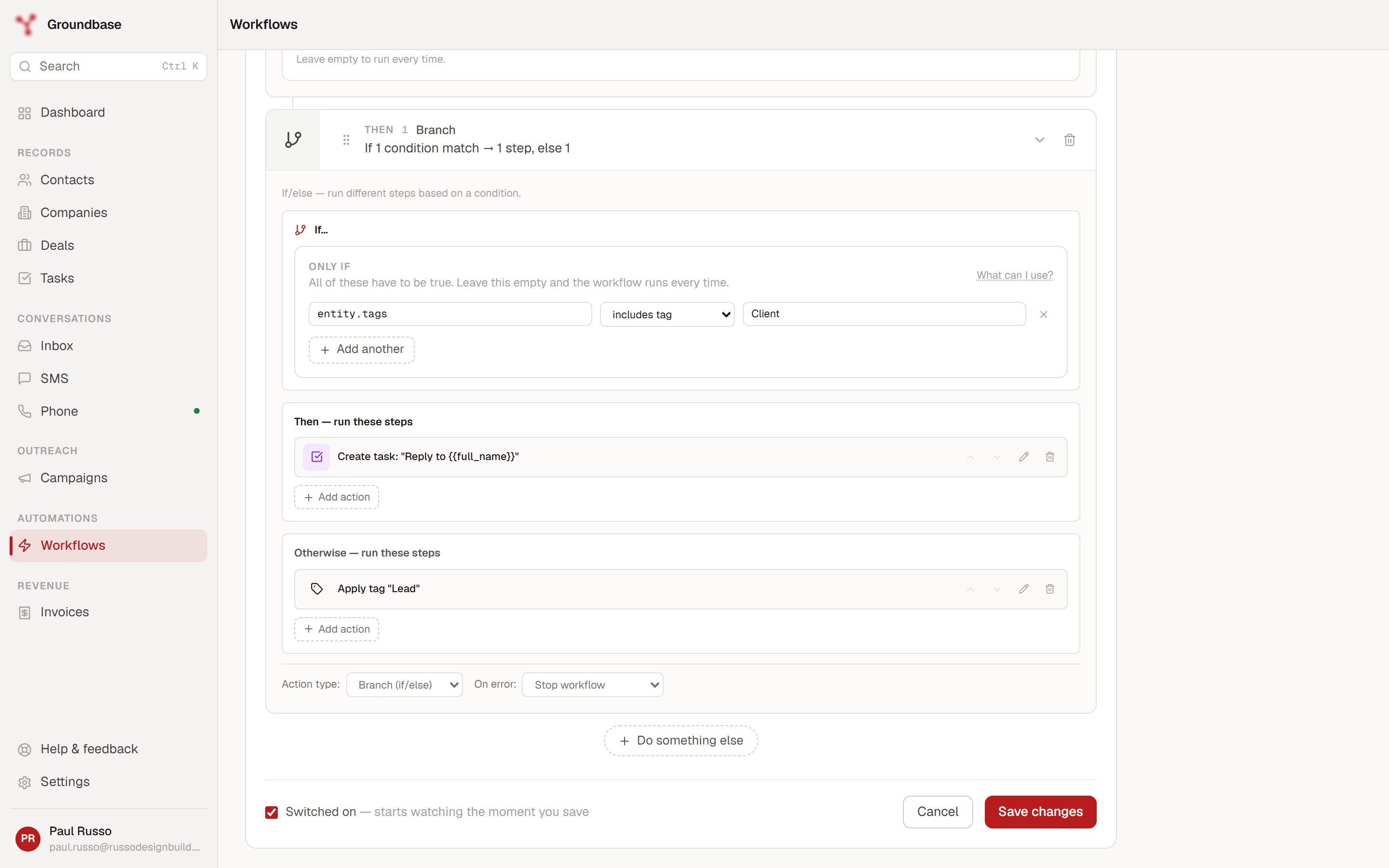
The condition uses exactly the same fields and comparisons as Only if. The difference is placement: Only if decides whether the run happens at all, and a branch decides which way it goes partway through.
Putting values into text
Any text field in a step can hold placeholders in double braces. They're filled in when the step runs, and anything unknown comes out empty rather than stopping the run. Press Variable beside a field to pick one instead of typing it.
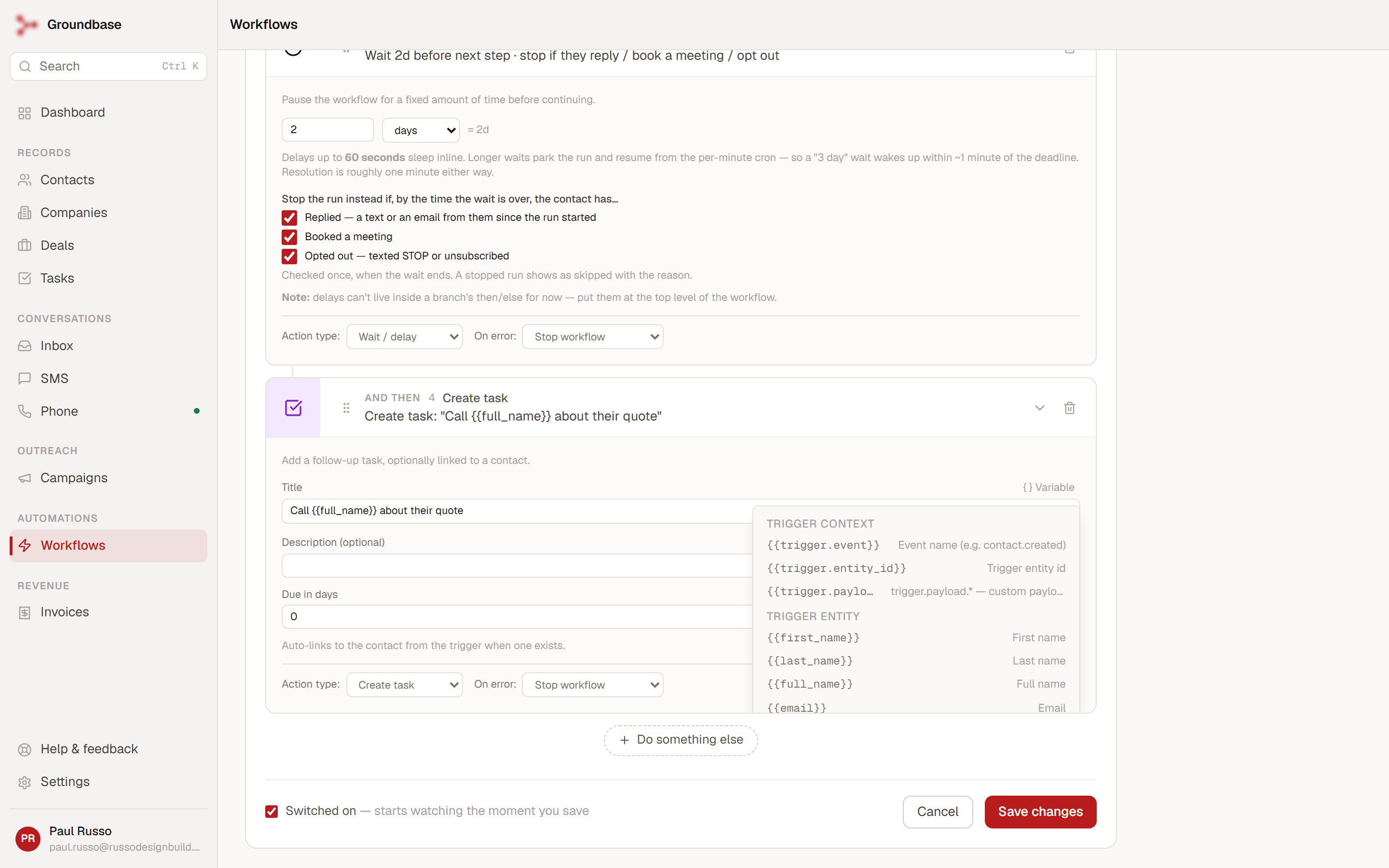
| Placeholder | Gives you |
|---|---|
{{first_name}}, {{last_name}}, {{full_name}}, {{email}}, {{phone}} | Those columns on the record. In a text or email body, {{company_name}}, {{deal_value}} and {{my_name}} work too, same as anywhere else in Groundbase |
{{entity.<column>}} | Any column on the record — {{entity.title}} on a deal, {{entity.position}} on a contact |
{{cf.<field_key>}} | A custom field |
{{trigger.event}} | The event name |
{{trigger.payload.<key>}} | A value the event carried — {{trigger.payload.to_stage_name}} on a stage change, {{trigger.payload.data.email}} from an inbound webhook |
{{steps.<step id>.output.<key>}} | Something an earlier step produced. Give that step an id so the reference survives edits |
The legend: what entity. can reach
| Record | Columns |
|---|---|
| Contact | first_name, last_name, full_name, email, phone, phone_secondary, primary_phone, company_id, position, city, source, notes, last_contacted_at, created_at, updated_at, plus tags |
| Company | name, industry, website, city, state, country, notes, created_at, updated_at, plus tags |
| Deal | title, value_cents (whole cents — $1,500 is 150000), stage_id, contact_id, company_id, close_date, notes, created_at, updated_at, plus tags |
| Task | title, description, due_at, end_at, kind, location, priority, contact_id, company_id, deal_id, completed_at, created_at, updated_at |
What each step hands to later steps
| Step | steps.<id>.output. keys |
|---|---|
| Send SMS | message_id, segments, status, to, contact_id |
| Send email | message_id, rfc_message_id, to, subject, contact_id |
| Apply tag / Remove tag | tag_name, entity_type, entity_id |
| Create task | task_id, title, due_at, contact_id |
| Create note | note_id, entity_type, entity_id, body |
| Update field / Set custom field | entity_type, entity_id, field or field_key, value |
| Fire webhook | url, method, status_code, response_body |
| Branch | passed (true or false), ran |
| Wait | delay_seconds, resumed_from (inline or cron) |
Step outputs are what let a workflow chain: create a task, then post its id to Slack with {{steps.call_back.output.task_id}}; or fire a webhook and branch on steps.<id>.output.status_code.
Reading the run history
Open the arrow on any row and you get its runs, newest first, with one line per step.
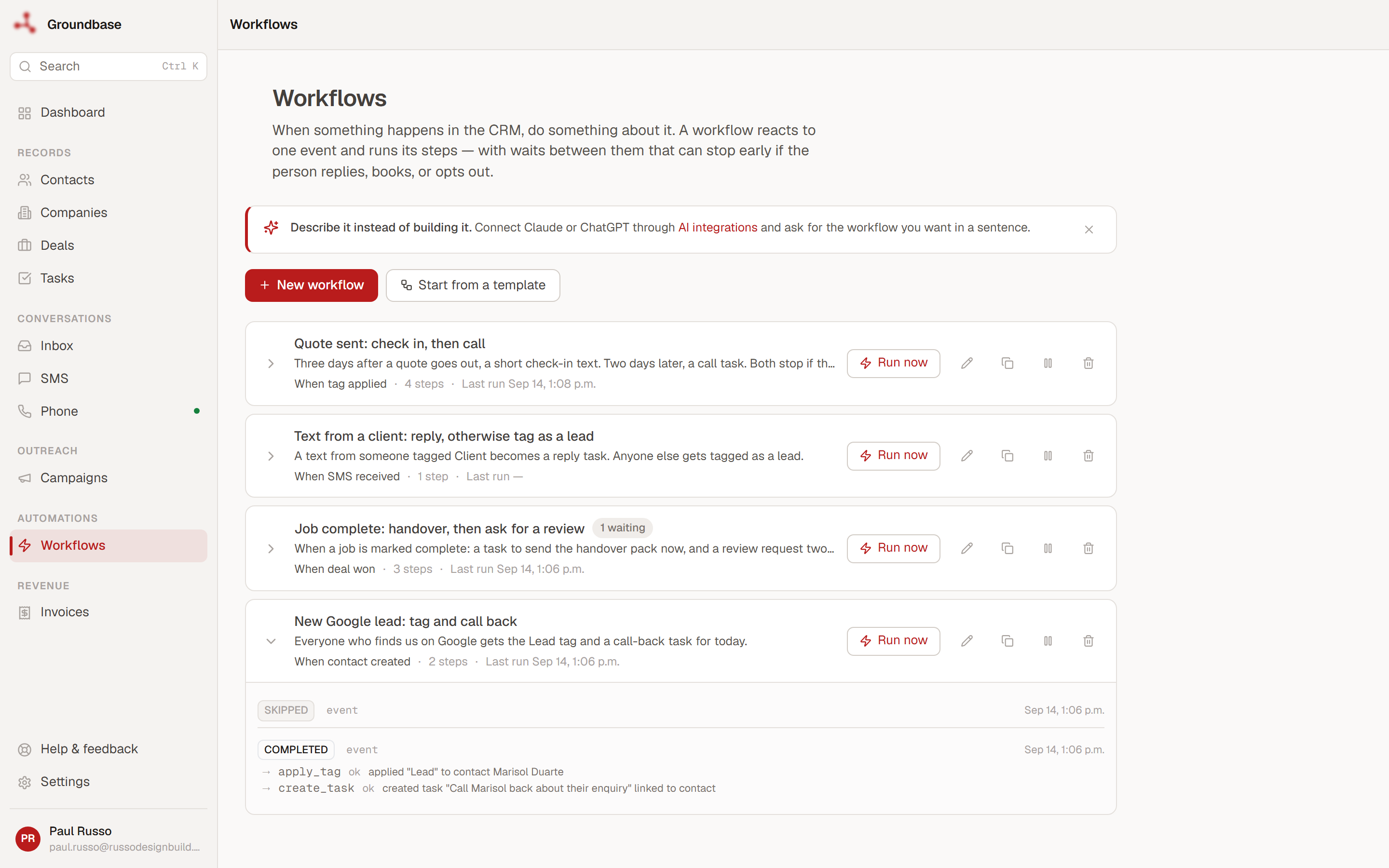
That's the new-lead workflow after two contacts arrived. One came from a referral, so the condition was false and the run was skipped. One came from Google, so it ran: tagged Lead, and a task to "Call Marisol back about their enquiry", linked to her record.
| Run status | Means |
|---|---|
| Completed | Every step ran, or was skipped by design |
| Skipped | The Only if condition was false for this record, or a wait stopped the run — the step line says which |
| Failed | A step errored with On error set to stop. The line says which step and why |
| Paused | Parked on a wait. The row in the list shows N waiting |
Each step line reads ok with what it did, skipped with the reason, or failed with the error. If a workflow ever "does nothing", this is where the answer is — nine times out of ten it's a condition that never matches, and the history shows every one of those runs as skipped.
Running one by hand
Run now on a row starts it straight away. For a workflow that reacts to an event, it asks you to pick a contact, and that contact becomes the record for the run. Two things to know:
- It runs every step for real. A Send SMS step sends the text. Test on yourself.
- Run now has no event behind it, so a condition on
trigger.payload.<key>is always false and the run is skipped. To test a tag-triggered workflow, apply the tag for real.
Pausing, editing, deleting
- Pause stops new runs and holds any that are waiting. Resume and they carry on.
- Editing a workflow that has waiting runs is allowed. Remove or reorder the step a run is parked on and that run fails when it wakes, so pause first if you'd rather it didn't run at all.
- Delete stops it and closes any waiting runs.
- If a workflow fails 20 times in a row, it switches itself off and the row says Paused by the engine. That's deliberate — a broken workflow firing on every new contact is worse than one that stops and tells you. Open the history, fix the cause, resume.
Starting from a template
If a blank editor is intimidating, Start from a template has six to pull apart — tag new contacts by source, a welcome email, an email to yourself when a deal is won, a call-back task after an inbound call, a daily webhook, and an auto-reply to known contacts.
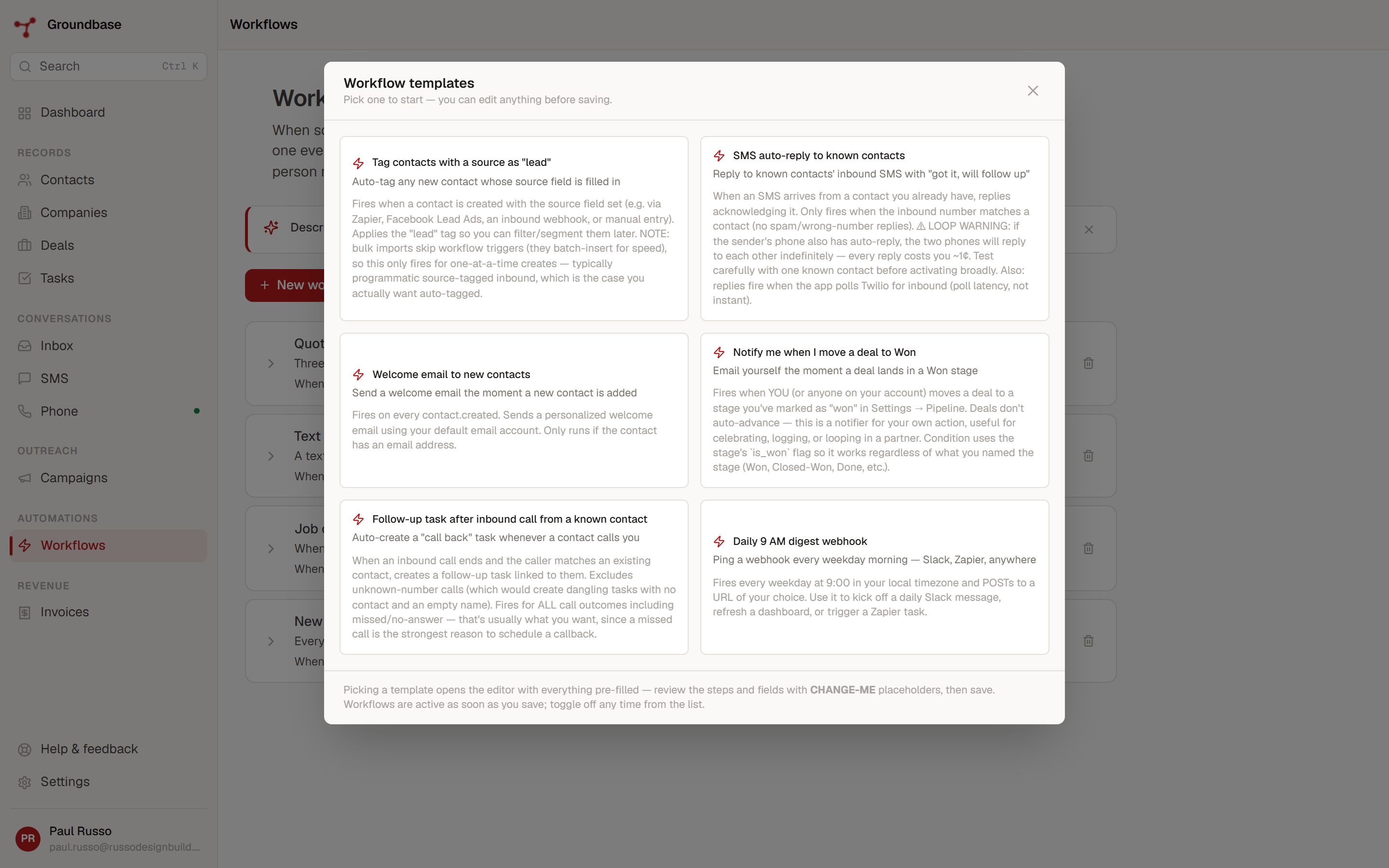
They open in the editor pre-filled. Anything marked CHANGE-ME needs your value before it will do anything useful.
Or describe it
If you've connected Claude or ChatGPT through AI integrations, you don't have to build any of this by hand. "When a deal is won, create a task to send the handover pack, and two weeks later a task to ask for a review" is a sentence, and the assistant builds the workflow. It can also read the run history and tell you why one skipped — which, given the table above, is usually the fastest way to find out.
What it doesn't do
Being straight about the edges, because an automation that quietly doesn't do what you assumed is worse than none.
A run about a deal reaches the deal's contact. Blank To on a text or email step means "the contact this run is about" — the record itself when it's a contact, and the deal's, task's or note's contact otherwise. {{first_name}} follows the same rule, and {{contact.email}} names it outright. A deal with no contact attached has nobody to reach, so the step is skipped and the run says so, rather than failing.
It's not Zapier. Zapier connects thousands of apps to each other. Workflows automate what happens inside your CRM, and reach the outside world through webhooks in and out. That covers a lot, but it isn't a directory of connectors — if what you need is "form to spreadsheet to chat app", use Zapier, and point it at an inbound webhook when it needs to reach Groundbase.
Waits have a one-minute resolution and a 30-day ceiling. Fine for follow-ups. Not a scheduler for the far future — use a scheduled trigger for that.
No per-contact enrolment list. A workflow reacts to events; there's no screen of "everyone currently in this". The N waiting count and the run history are the view.
What it costs
Nothing per run. Texts go through your own Twilio account at Twilio's rates, and emails through your own connected inbox. Groundbase doesn't meter executions or take a cut per message — a workflow that runs two hundred times this month costs the same as one that runs twice. That's the real difference from task-metered automation tools, where CRM events are exactly the high-volume, low-value kind that eat an allowance.
If you'll be texting US numbers, A2P 10DLC registration comes first — one-time paperwork, walked through separately.
Try it
Groundbase is $9/month flat with a 14-day trial. Workflows are included, along with everything else — there's one plan. (Who it's for, and who it isn't.) The in-app help has the same reference tables under Workflows, if you'd rather keep them next to the editor.
Built something with workflows, or hit an edge I haven't listed? Tell me: blog-workflows@groundbasecrm.com — I read every one.
Built by a solo dev. Try it.
Start your 14-day trial →More from the Pipeline
Per-seat pricing: what a one-person business actually pays (checked September 2026)
Per-seat pricing should mean one person pays for one seat. Several CRMs charge a solo operator for more — s…
How to warm up a new email domain (a four-week schedule, and what actually gets you filtered)
You verified the domain, the DNS is green, and your first campaign still went to spam. Warming is the missi…
Why I removed Sequences from Groundbase (and what replaced them)
On 14 September I deleted a whole feature rather than keep improving it. Groundbase had three ways to send …
Our email campaign reported 60 clicks. One was a person.
Across 24 outreach campaigns sent between 1 and 21 September 2026, Resend reported about 60 unique clicks. …